Computer Assembly - How To Assemble A PC
Test The SATA Hard Drive
If all went well then the computer re-booted from the optical drive, starting the Data Lifeguard Diagnostics utility. This utility is available from the Western Digital Software Library page.
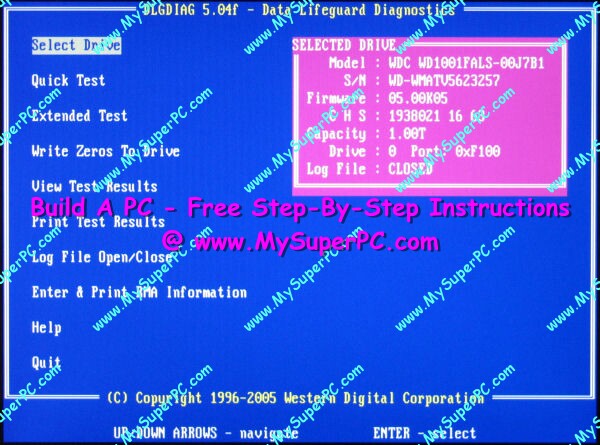
After the utility loads and after accepting the licensing agreement, the main menu screen appears and looks something like this.
The Data Lifeguard Diagnostic utility offers several tests and I ran all the ones that looked relevant. First I ran the "Quick Test". It took less than three minutes and finished successfully. Second I ran the "Extended Test" which took two hours and forty minutes and also finished successfully. These first two tests are read-only tests, so they make no changes to the hard drive.
The next two tests are available under the "Write Zeros To Disk" option. The "Write Zeros To Disk" tests do writes to the hard drive so any previous contents are overwritten. Since the hard drive is blank as far as I'm concerned, that's ok by me. After selecting the "Write Zeros To Disk" test, two options are presented. One is to do a "Quick Erase", which writes to a small portion of the hard drive. The other is to do a "Full Erase", which writes to the entire hard drive. The "Quick Erase" test took less than a minute and finished successfully. Finally I selected the "Full Erase" to check out the entire hard drive. This took two hours and forty minutes to complete and also finished successfully. The new hard drive is "good".
Choosing to "Quit" the Data Lifeguard Diagnostic utility takes you to a point where a message is displayed that says "The system must be reset - hit Ctrl-Alt-Delete or turn the power off". Remove the CD containing the Data Lifeguard Diagnostic utility from the optical drive.
Congratulations! The second boot test has completed successfully! The hard drive has been well exercised by this test, and even the optical drive has been successfully used.
Common Problems
If the Data Lifeguard Diagnostic utility reports a failure as a result of any of its tests then the most likely reason is a bad hard drive. Although that's bad news it's certainly better to find out now, and was actually the point of running the test.
If the Data Lifeguard Diagnostic tests seem to be taking way longer than they should, like 16 hours for the "Full Erase", or appear to be stuck then the most likely reason is that the DMA settings for the hard drive in the BIOS are not correct.
Back to My Super PC - Home Page
How To Build A Computer. Step By Step Instructions To Assemble. Skip To Any Assembly Step.
Back to My Super PC - Home Page
© 2001-2015, Rob Williams, all rights reserved.
|

|